How to change password for your cPanel email account

Password change tips:

  • Your password must be at least 8 characters and contain at least 1 uppercase character, 1 lowercase character, and 1 number.
  • Use a combination of 8+ characters for a strong password.
  • Your mailbox password cannot contain spaces or the following characters: \, &, +, '.
  • These characters can be used: [a-zA-Z0-9#!@$%^*()_="?.,/;:<>`{|}~-[]].

Log in to cPanel.

Navigate to the Email Accounts menu.
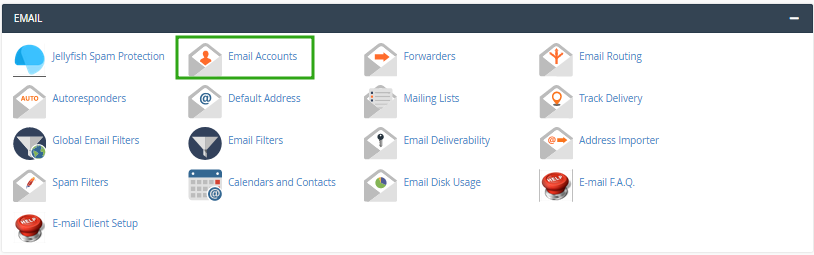
pass1.1.png


Find the necessary email address, and click the Manage option.
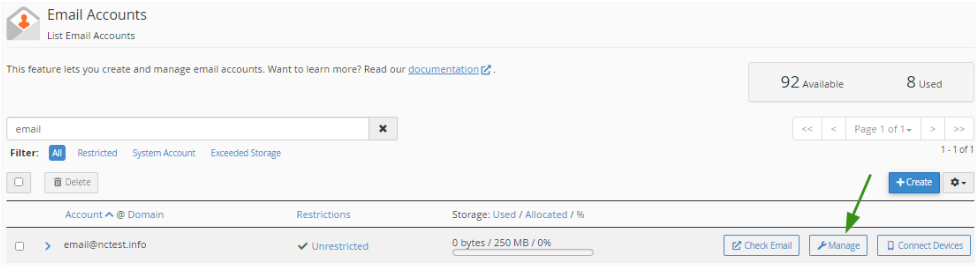
em_pass2.png


Navigate to the Security field and enter a new password. Alternatively, you can use the Generate option to create a password.
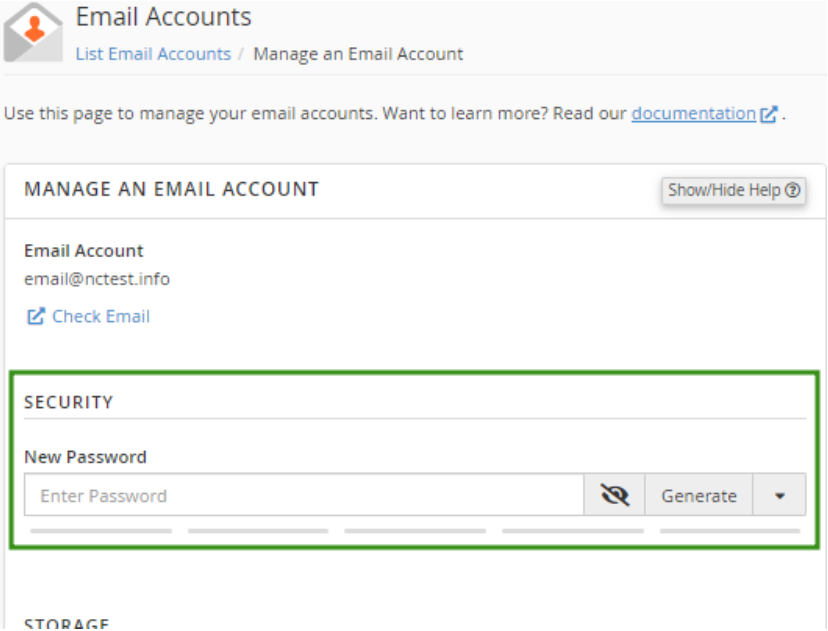
em_pass3.png


Click Update Email Settings to save the changes.
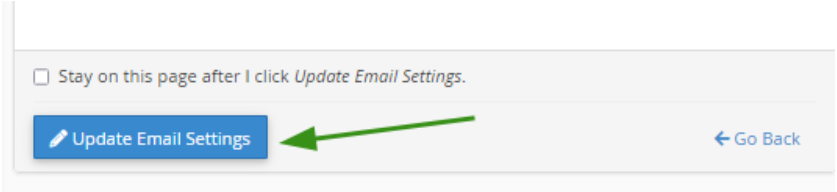
em_pass4.png


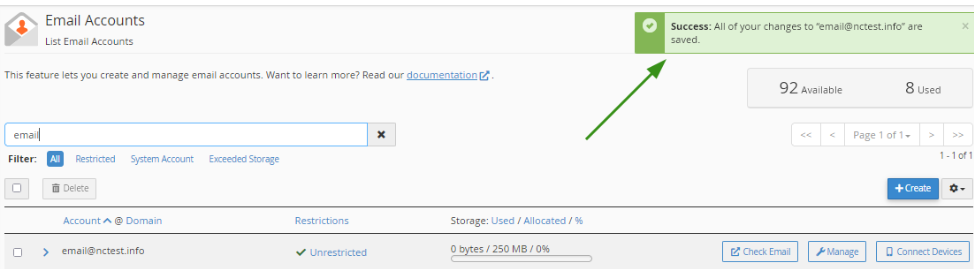
    1. Once the changes are saved, you’ll see a confirmation message at the top of the page.


em_pass5.png

Success!

  • 0 Kunder som kunne bruge dette svar
Hjalp dette svar dig?

Relaterede artikler

How to Create An Email Account in cPanel

In order to create a new email account in cPanel, follow the instructions below: 1. Log in to...

How to connect your cPanel email account to Gmail

1 | Set up your email account in cPanel First things first, you will need to set up an email...

How to set up your cPanel email account in Outlook 2019 on Windows

This tutorial will help you to add a new or re-configure the existing cPanel email account in...

How to set up your cPanel email account in Outlook for iOS

This guide provides instructions on how to set up your Yana Corp Private Email Account in Outlook...

How to set up your cPanel email account on Android 7.x.x

In order to configure your cPanel email address on Android 7.x.x device, follow these steps: 1....

Powered by WHMCompleteSolution