How to change the time zone in cPanel Webmail

By default, webmail applications use the host server's time zone. If you are in a different time zone, you can change this setting. The exact steps to do this depend on the webmail application you are using. After you change the time zone setting, the interface displays all timestamps in the new time zone right away.

Roundcube


To change the time zone in Roundcube, follow these steps:

1. Log into your  Webmail.
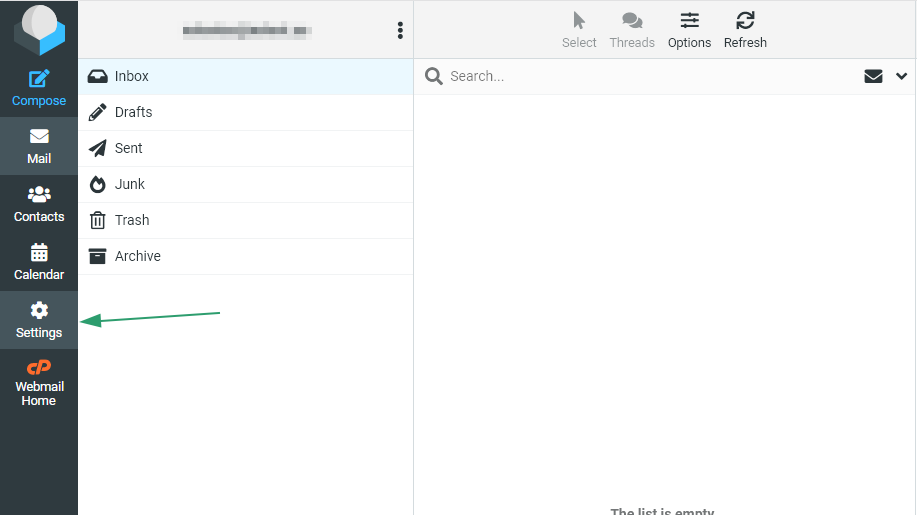
2. Click Settings:

roundcube_timezone_1.png

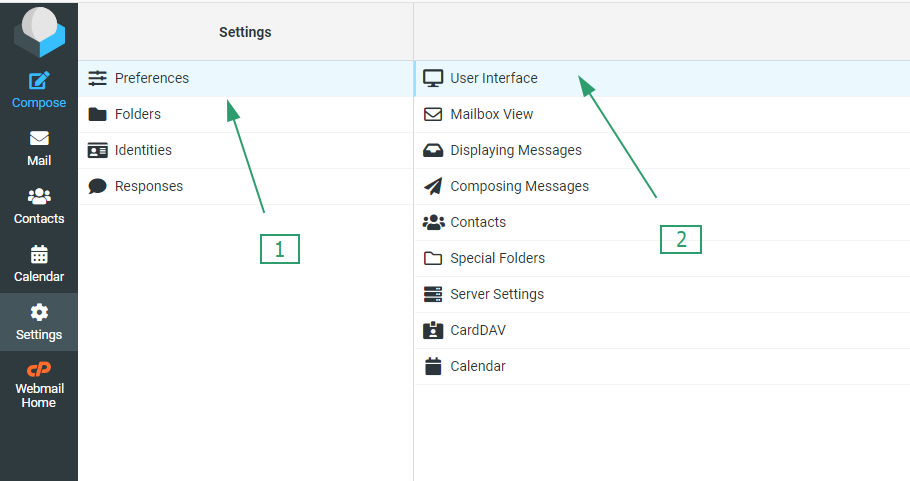
3. Click Preferences, and then click User Interface:

roundcube_timezone_2.png

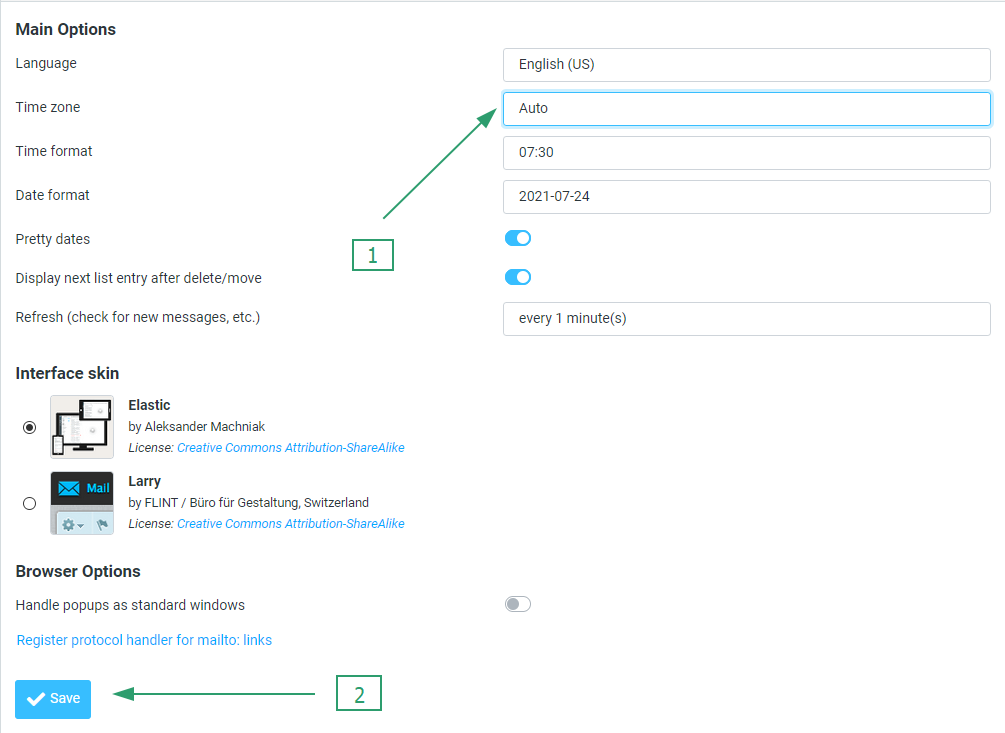
4. Select your time zone from the drop-down list, and then click Save:

roundcube_timezone_3.png


That’s it!


  • 0 أعضاء وجدوا هذه المقالة مفيدة
هل كانت المقالة مفيدة ؟

مقالات مشابهة

How to Create An Email Account in cPanel

In order to create a new email account in cPanel, follow the instructions below: 1. Log in to...

How to change password for your cPanel email account

Password change tips: Your password must be at least 8 characters and contain at least 1...

How to connect your cPanel email account to Gmail

1 | Set up your email account in cPanel First things first, you will need to set up an email...

How to set up your cPanel email account in Outlook 2019 on Windows

This tutorial will help you to add a new or re-configure the existing cPanel email account in...

How to set up your cPanel email account in Outlook for iOS

This guide provides instructions on how to set up your Yana Corp Private Email Account in Outlook...

Powered by WHMCompleteSolution